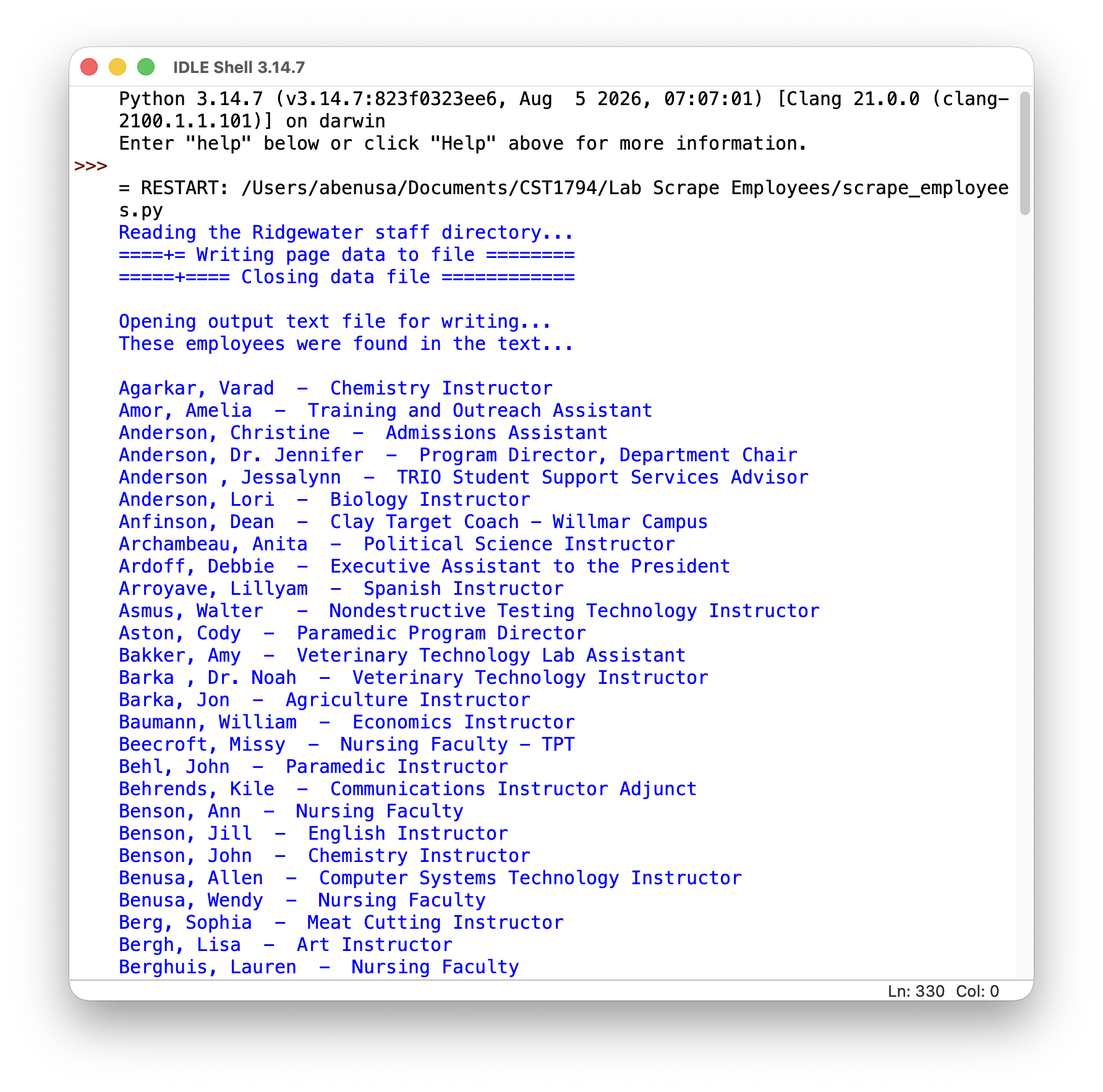
The image below shows an example end run of the program.
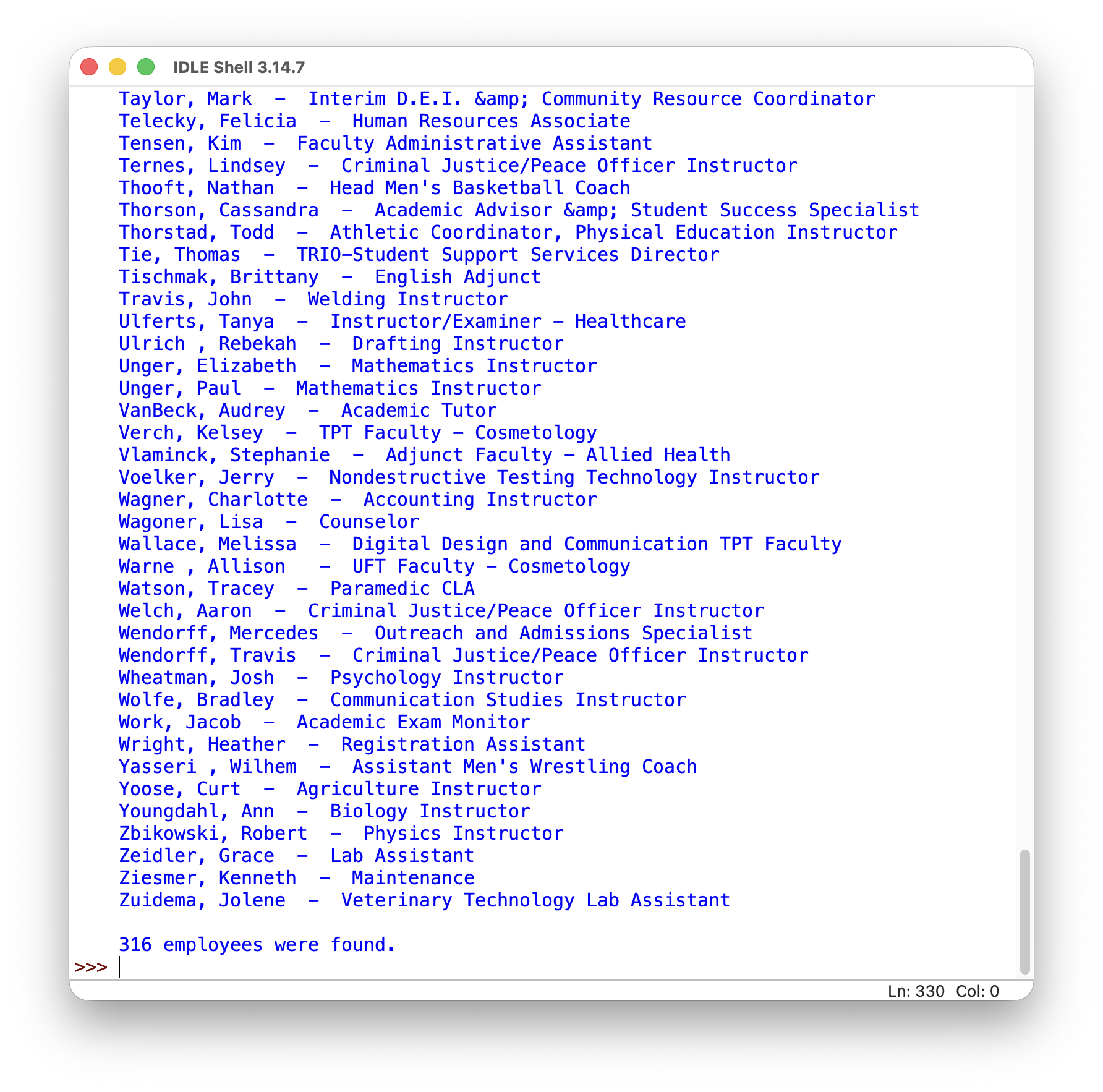
The image below shows an example employees.txt file.
Lab Scrape Employees
Update:
It appears if there are too many requests to the Ridgewater URL with the same User-Agent, then anti-bot measures kick in and you will get a 403 Forbidden error.
Websites that describe how to overcome this:
How to customize Your User-Agent with Python Requests
How to Effectively Use User Agents for Web Scraping
The fix is to use your own User-Agent.
Go to Chrome tools, Console, and type navigator.userAgent at the > (prompt)
You will get a response with the User-Agent of your machine. Use it in your Python code.
Here’s how you can check and get the user agent using your browser’s console:
Open the developer tools in Google Chrome, Microsoft Edge, Mozilla Firefox, Safari or any other browser. You can use F12 or Ctrl+Shift+I on Windows/Linux, or Cmd+Option(⌘)+I on macOS. Switch to the Console tab.
Type navigator.userAgent in the console and press Enter (or Ctrl+Enter). The console will return a string which is your browser’s user agent.
This lab is to be done on your own.
Submit all these files to the D2L dropbox:
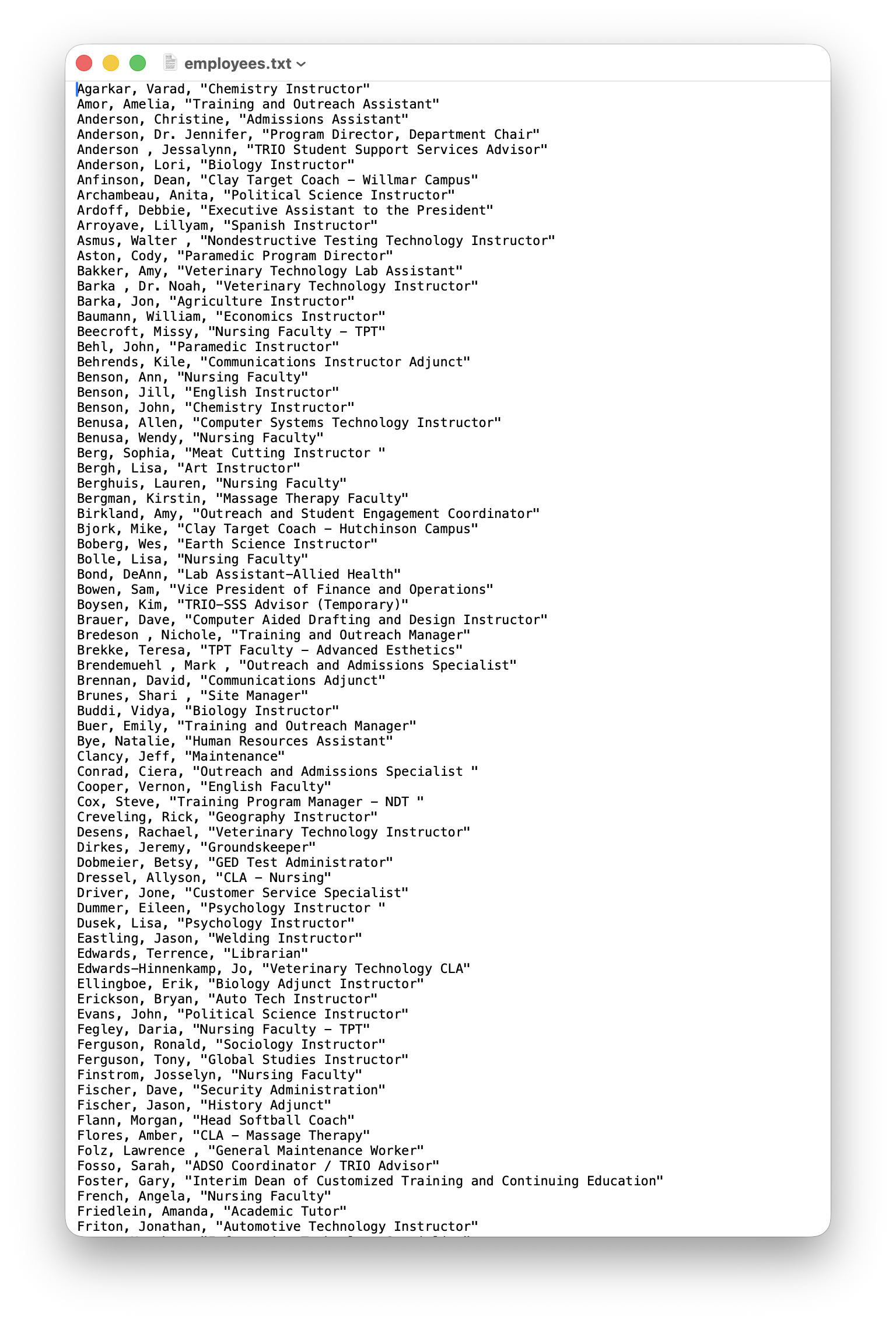
The image below shows an example start run of the program.
The image below shows an example end run of the program.
The image below shows an example employees.txt file.